DELTARUNE PROPHECY MAKER · GUIDES & HELP
Vessel Maker Guide: Transparent PNG to Prophecy GIF
The Vessel Maker creates a static character image. Download a transparent PNG directly, or send the character to the Prophecy Maker to add text and animated effects. This guide follows that complete workflow.
1. Choose the appearance, not a story outcome
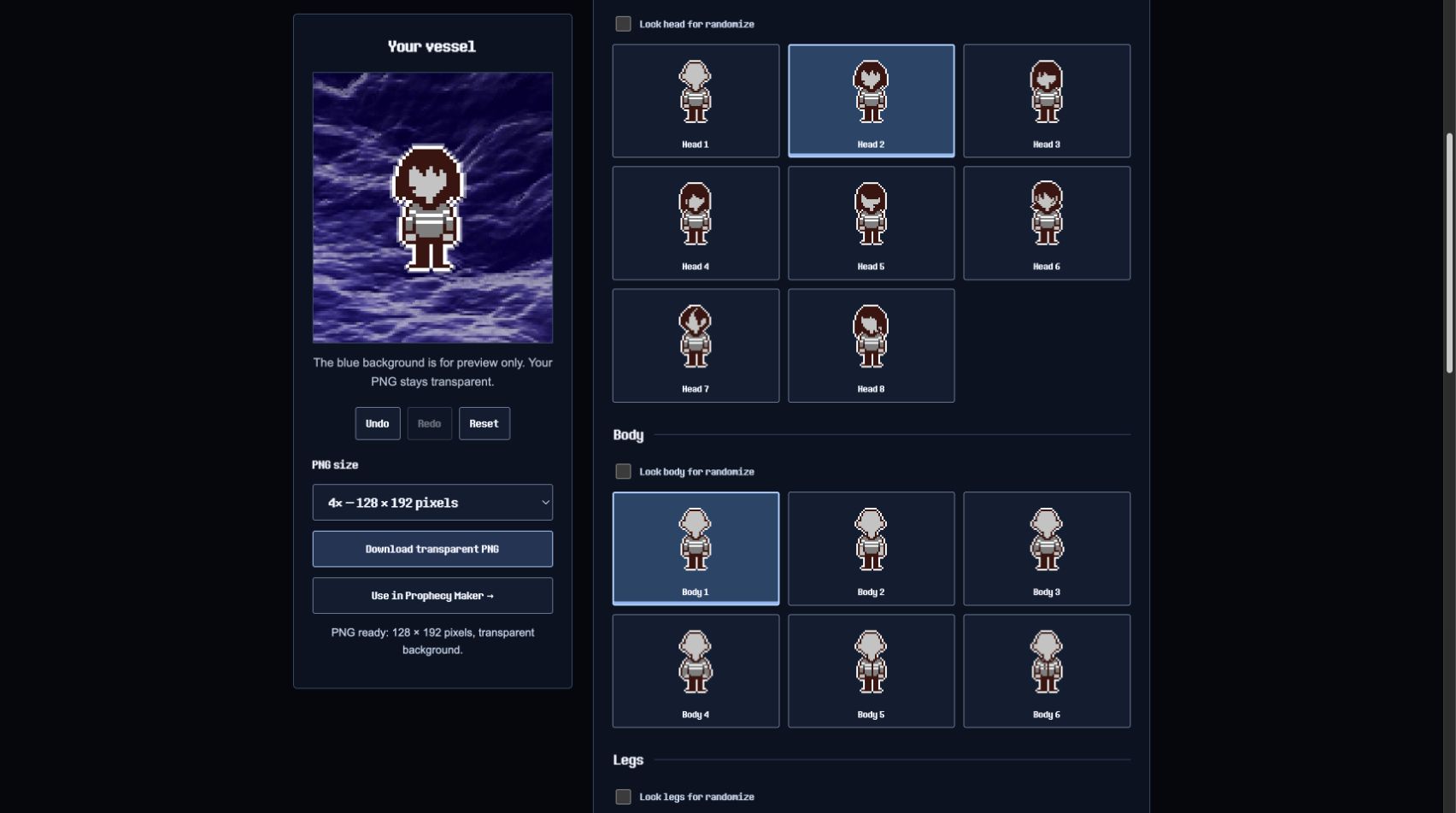
Open the Vessel Maker. Its categories are head, body and legs. Choose a part in each category and watch the preview update. The editor recreates the appearance choices from the Chapter 1 introduction; it is not the full Goner opening sequence, personality questionnaire or a game-save editor.
There are eight head choices, six body choices and five leg choices. The first four leg choices share the same visible appearance, while the fifth is mirrored. Separate choices do not necessarily produce visibly different images. If the legs appear unchanged after clicking, compare their labels before assuming that the editor failed.
For a controlled comparison, keep the body and legs fixed while looking through the heads. Then keep the chosen head fixed and compare bodies. This makes it easier to identify the part responsible for a change in the outline. A small preview can hide subtle details, so use the larger exported PNG to inspect pixel edges.
2. Use locks and undo to compare deliberately
Randomize is useful for discovering a combination, but you do not need to accept every change it makes. Lock the categories you want to keep, then randomize the remaining categories. If every category is locked, there is nothing left to randomize.
Use Undo to compare a new arrangement with the previous one. Before starting another experiment, download the version you like. A saved image provides a reference even if you reset the editor, clear browser data or later switch to another device. The tool does not maintain an online account or a server-side history of your characters.
3. Download a transparent PNG
The blue scene behind the character is a preview background. It is not included in the PNG download. Select a PNG scale, then choose Download transparent PNG. The 1× option keeps the source pixel dimensions; 2× and 4× enlarge each pixel by an integer factor.
Integer scaling is useful for pixel art because it avoids creating half-sized edges between the original pixels. A larger file gives you more room in a layout, but it does not add new drawing detail. If you later resize it in another editor, use nearest-neighbor or a pixel-art scaling option when you want to preserve hard edges.
A viewer may display transparency against white or black. Seeing a white rectangle in that viewer does not by itself prove that the PNG has a white background. Place it over a colored layer in an image editor to inspect the area around the character. A screenshot of the preview is different: it captures the visible blue background as ordinary pixels.

4. Send the character to the Prophecy Maker
Choose Use in Prophecy Maker. The site prepares the static PNG and opens the prophecy editor. Your character is transferred locally within the same browser; this is not a public sharing URL or an upload to a gallery. Do this soon after preparing the transfer, and keep both tools on the same site and browser profile.
If the automatic transfer fails, the practical fallback is simple: download the transparent PNG, open the Prophecy Maker, and select that file with its image upload control. You can still complete the composition without restoring a transfer token. Private-browsing modes or blocked site storage may affect automatic transfer.
In the prophecy editor, add your own short message. Try “A STRANGER WAITS” for a single line, or A STRANGER\nWAITS for two lines. The words here are an original practice message, not dialogue quoted from the game. Start at the default position, adjust the scale until the character fits, then compare the styles.
5. Understand what a character GIF contains
For a still prophecy, choose Export PNG in the prophecy editor. For moving textures, choose Export GIF and keep the page open while it completes. The resulting GIF contains the prophecy composition and its effects around a static character; it does not make the vessel walk, turn or perform actions.
The transparent character PNG and a prophecy GIF serve different purposes. Keep the PNG if you need to place the character over another background. Keep the GIF if you want the finished prophecy effect. Do not assume the GIF retains the character-only transparency or that the blue preview scene becomes a separately downloadable animation.
The animation guide shows the site's existing GIF styles and export limits. If you need an opening-scene recreation with several shots, sound or character movement, you will need a separate animation workflow and the appropriate rights to any assets used.
6. What this browser remembers
When local storage is available, the Vessel Maker remembers selected parts and their locks for your next visit in the same browser. It does not synchronize them with another phone or computer. Clearing this site's data removes those preferences, so use a downloaded PNG for a copy you can keep independently.
The transfer to the prophecy editor uses a separate temporary browser database. A transfer can be read for ten minutes and its record is deleted when read. A transfer that was never consumed may remain in local storage until overwritten by the next transfer or removed with site data; it is not an online image library. See the Privacy Policy.
Common problems and checks
- Choices are not saved: browser storage may be unavailable. Download your character before closing the page.
- The transfer expired: return to Vessel Maker and prepare a new transfer, or upload the downloaded PNG manually.
- The PNG has a blue background: confirm you saved the PNG download rather than a screenshot of the preview.
- The character is clipped in a prophecy: reduce scale, then adjust vertical position in the prophecy editor.
- The GIF character does not move: this workflow animates effects, not poses. That result is expected.
This is an unofficial fan tool. The game artwork belongs to its rights holders, and downloading it does not grant a commercial license. Use the contact page for a reproducible tool issue, and include the browser, the failed step and whether a direct PNG download works.