Classic blue

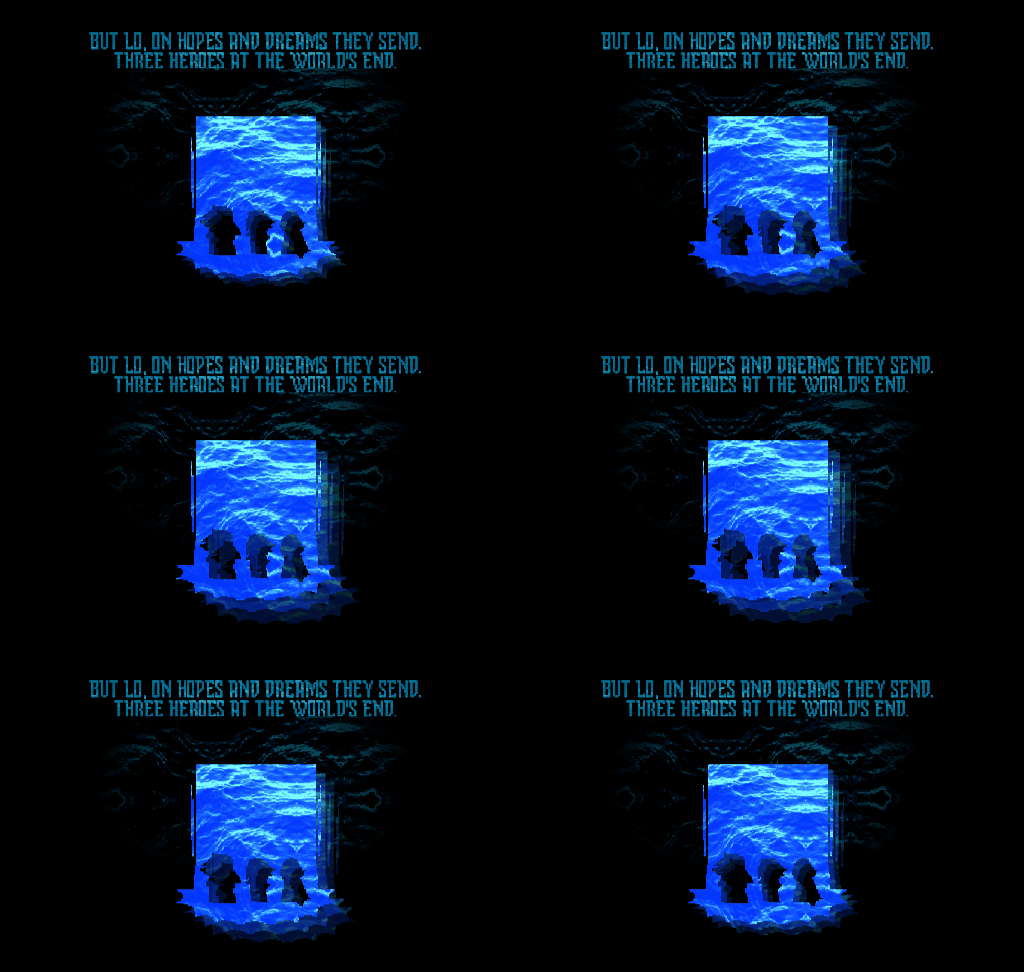
Blue textures and floating ghost layers around the Three Heroes silhouette. In the editor, this style is called Default.
Play / hide Classic blue GIF
FROM A STILL PANEL TO A GIF
Give your prophecy motion.
Keep it as a looping GIF.
Create a single animated prophecy panel with your own words and image. Compare the examples below, then open a preset in the Prophecy Maker to edit and export it for free.
Make a prophecy GIF · Compare styles
This workflow animates a panel’s textures and effects. For character movement, dialogue scenes or a multi-shot cutscene, you’ll need a different animation editor. The presets below contain Chapter 4 spoilers.
These samples were exported with this site’s editor. Open an example to play it; close it to hide the motion. The small silhouettes are the starting images, not the finished exports.
Blue textures and floating ghost layers around the Three Heroes silhouette. In the editor, this style is called Default.

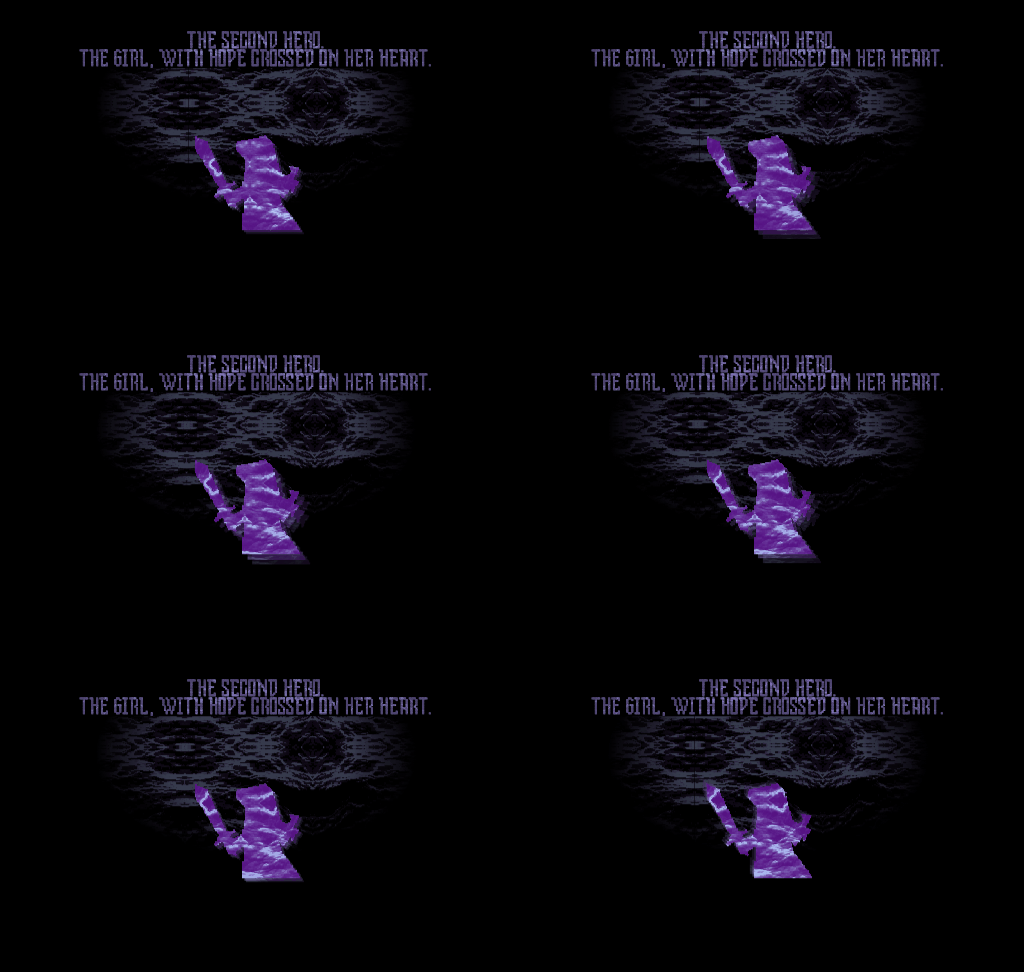
Compare this texture treatment on The Second Hero. Its preset loads the matching style and image placement together.

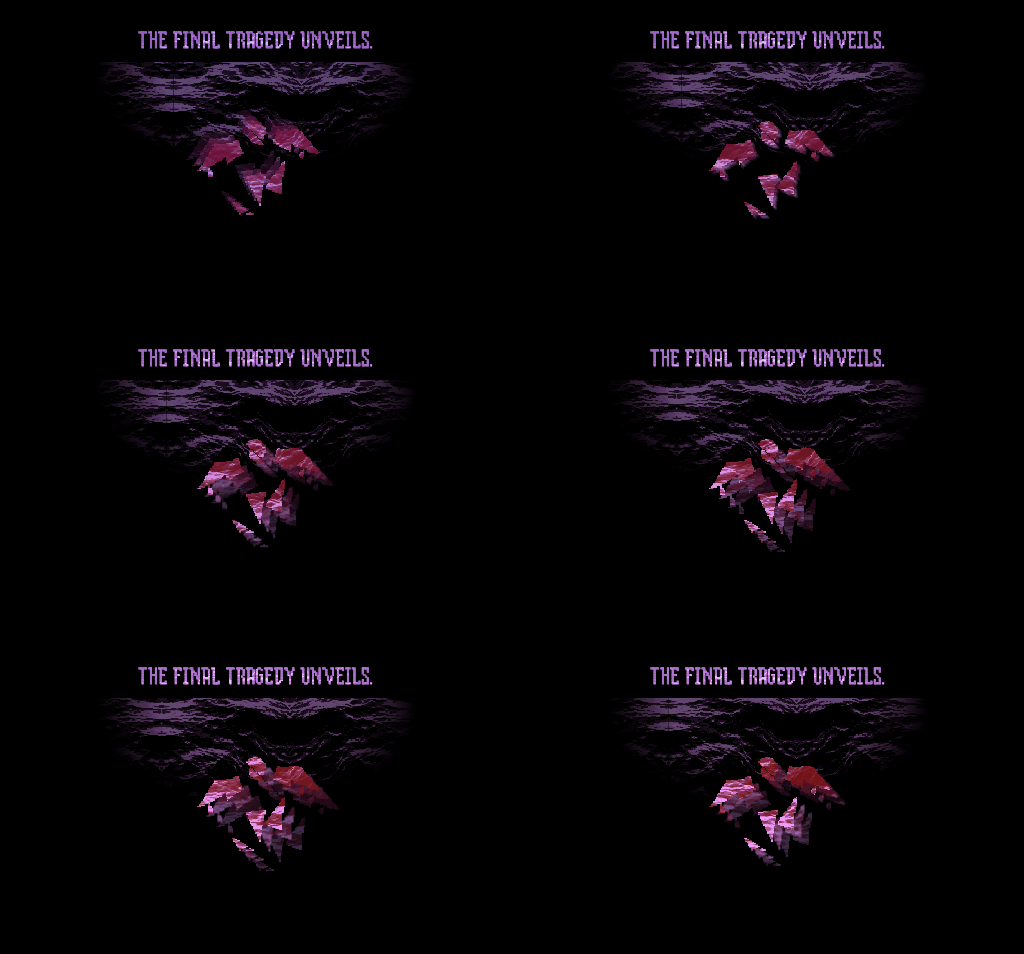
The Final Tragedy preset adds a changing red pulse. Open the GIF to see the color change that a still PNG cannot preserve.
\n where you want a line break. Short lines are easier to fit; check the preview as you type.The current GIF export is a short repeating clip: 30 frames at 50 ms per frame (1.5 seconds). Its frame size is 512 pixels wide, with extra height for the text above the panel. The animated preview runs continuously; the saved GIF repeats the captured clip, so the repeat point can be visible.
| Format | What you get | Use it for |
|---|---|---|
| PNG | A still panel with your text and chosen style. | A post, thumbnail or static meme. |
| GIF | A repeating animation with moving effects; the Final style includes a red pulse. | A short animated post or reaction. |
The maker exports PNG and GIF, not MP4 or audio. A GIF applies the prophecy effect to one composition; it does not make the uploaded character walk or build a sequence of different panels.
Check that you used Export GIF, not Export PNG. Some galleries show only a thumbnail; open the downloaded .gif file in a browser or another viewer that supports animation.
The editor uses the image as a mask. Try a clear white silhouette on a black or transparent background. Use the monochrome converter to adjust a color image, then check scale and vertical position in the editor.
Wait for the export to finish before starting another. If you see an error, retry with a built-in preset and the default textures to check whether custom assets are involved. Keep a copy of your text and source image before reloading the editor.
The current exporter uses a fixed short clip and has no duration or audio control. For longer scenes or a soundtrack, use a separate video editor that accepts your exported artwork.
Yes. Upload a suitable image in the editor, or create a vessel and send its static image to the Prophecy Maker. The moving effect is applied around the artwork; it does not generate new character poses.